One click on any photo
Press the Skyshot button and every photo shows the Skyshot icon in its corner. A click opens it solved in Skyshot: objects, grid, the 3D sky.
Browser extension
The Skyshot extension for Chrome adds Skyshot to the pages you read. Point at a photo of the night sky and see where it points, how wide it is and what it shows: on the page itself, or opened in Skyshot.
VERSION 0.2.0 · CHROME, EDGE, BRAVE, OPERA, ARC · Developer preview
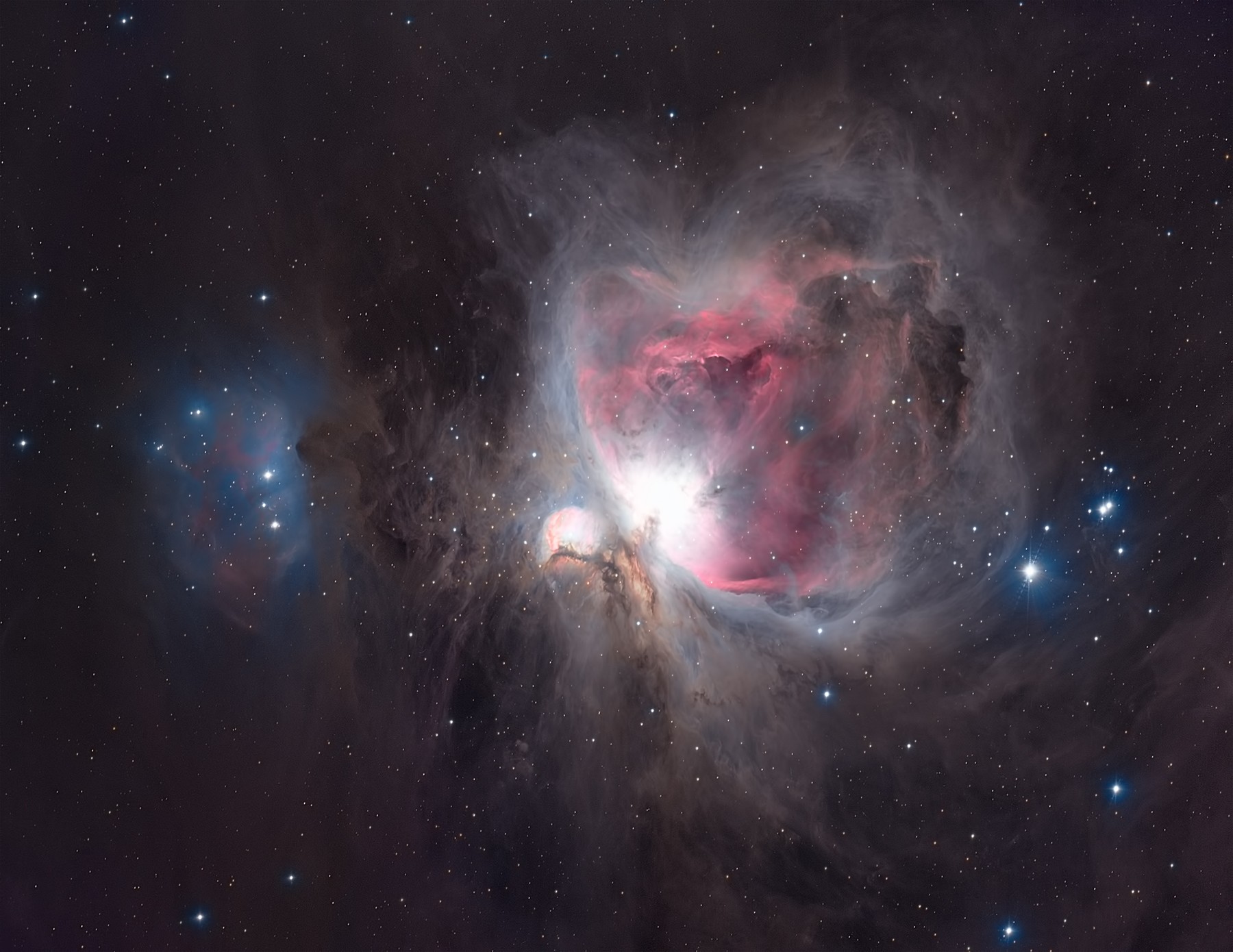 ✓ Orion Nebula · 1.72° × 1.33°05h35m10s −05°19′17″ · open in Skyshot
What it does
Press the Skyshot button and every photo shows the Skyshot icon in its corner. A click opens it solved in Skyshot: objects, grid, the 3D sky.
“Solve all” identifies the photos of the page where they are. Each gets a badge with its object, field size and centre.
“Solve with Skyshot” on a photo, “Open link in Skyshot” on a link to a JPEG, TIFF or FITS file, “Open this page in Skyshot” on the page.
Your browser fetches the photo, so sites that turn servers away work, and so do your own photos behind a sign-in.
Install
Until the extension is listed in the Chrome Web Store, it installs from the ZIP in your browser's developer mode. Chrome, Edge, Brave, Opera and Arc all take it.
Download the ZIP above and unzip it into a folder you keep, for example Documents › Skyshot extension. The browser runs the extension from that folder, so leave it there.
Download the extensionPaste this address into the address bar. A web page cannot open it for you.
chrome://extensionsEdge: edge://extensions · Brave: brave://extensions · Opera: opera://extensions
The switch is in the top right corner of the extensions page (in Edge, on the left).
Click “Load unpacked” and choose the unzipped folder, the one with manifest.json in it. Skyshot appears in the list and its welcome page opens.
Click the puzzle icon in the toolbar and pin Skyshot, so its button stays in view. On the welcome page, “Allow all sites” lets the extension fetch photos from any site; without it, it works with what each page shares.
First steps
Telescope close-ups narrower than about 0.3° (most Hubble and JWST images) are finer than the sky index: “No solution” is the honest answer there.
Privacy
The extension decodes a photo and finds its stars in your browser; only the star positions go to the Skyshot solver. The page you solve on is not told the result.
Nothing runs in the background. A photo you right-click or open is fetched with your cookies for its site, as your browser fetches it to show it; pages in Skyshot's Web tab without them.
Manage
Download the new ZIP and unzip it over the same folder, then press the reload arrow on Skyshot's card in chrome://extensions. This page always offers the current version.
Click Remove on Skyshot's card in chrome://extensions. The panel address and the copy of your Skyshot access it kept are removed with it.
The extension's options take the address of a local panel (skyshot serve), for example http://localhost:8850/. The right-click menu and the icon then open photos there.